In 2026, a Meta Business Manager restricted status is the digital equivalent of a “lockdown” for your brand. Unlike a simple ad account suspension, a restricted Business Portfolio (Business Manager) prevents you from sharing pixels, managing pages, or assigning permissions to your team.
As Meta’s AI-driven “Andromeda” and “Lattice” enforcement systems become more proactive, even legitimate businesses can find themselves cut off from their audiences. At KayoAds, we help brands navigate these bottlenecks by moving them into high-trust Meta Agency Ad Accounts that are pre-verified and resilient to automated flags.
Why Your Meta Business Manager is Restricted
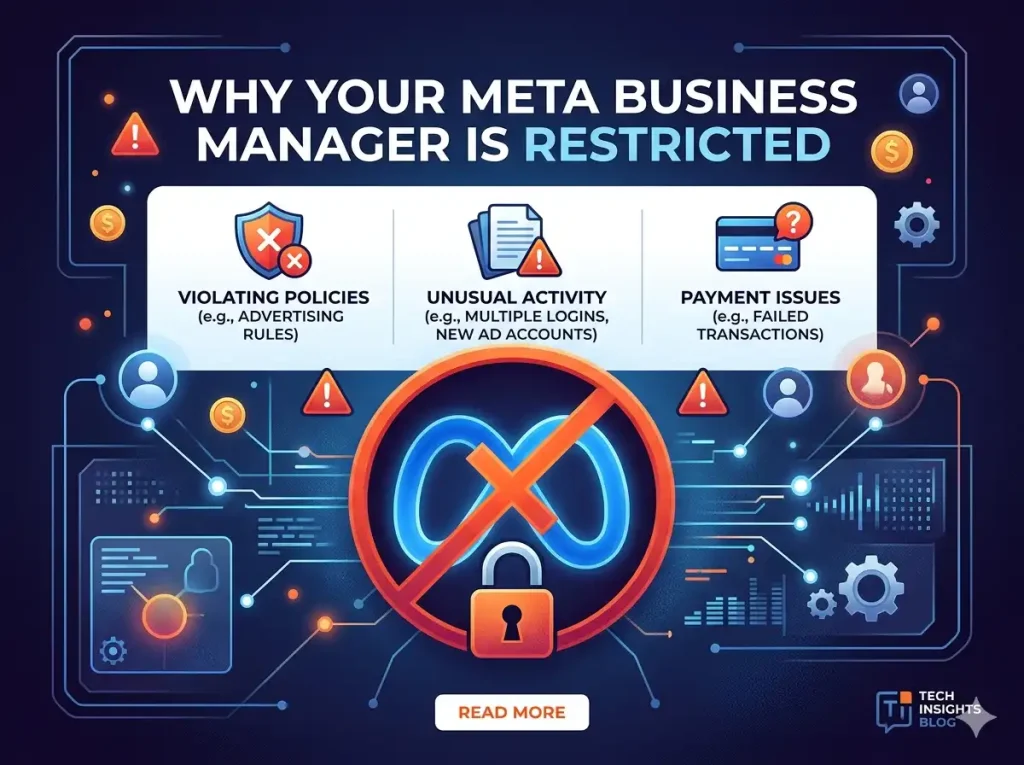
Before you can fix the restriction, you must identify the “Signal” that triggered Meta’s automated security. In 2026, the most common reasons include:
1. Identity & Business Verification Failure
Meta now requires every Business Manager to have a verified “legal entity” status. If you haven’t completed the Advertiser Identity Verification (AIV), or if your business registration documents don’t match your payment DNA, Meta will restrict the portfolio to “protect the community.”
2. Association with “Bad Actors”
Meta’s 2026 “Relational Mapping” algorithm tracks everyone in your Business Manager. If an admin or employee has been part of a previously banned BM, your current Business Manager may be restricted due to “Asset Contamination.”
3. Suspicious Payment Activity
Rapidly increasing your daily spend or logging in from a high-risk IP address (without a static residential proxy) can trigger a security lock. This is often mislabeled as a policy violation when it is actually a safety measure.
4. Unoriginal Content & IP Infringement
Following Meta’s 2026 Original Content Rules, accounts that repeatedly share unvetted or unoriginal Reels and Ads face portfolio-wide restrictions. This is especially common for brands that haven’t optimized their Web Design or creative assets for originality.
How to Fix a Restricted Meta Business Manager (Step-by-Step)
If your Business Portfolio is restricted, follow this 2026 recovery protocol. Do not attempt to create a new BM immediately, as this will likely result in a “Circumventing Systems” ban.
Step 1: Visit Business Support Home
Navigate to the Meta Business Support Home (formerly Account Quality). This dashboard is the only official source for understanding your restriction level. Look for the “What you can do” panel to see if you have a “Request Review” option available.
Step 2: Enable Two-Factor Authentication (2FA)
Meta often restricts accounts simply because they are deemed “insecure.” Ensure every admin in your Business Manager has enabled 2FA via an authentication app (not just SMS). This simple step can sometimes trigger an automatic lift of security-based restrictions.
Step 3: Complete Business Verification
Go to Business Settings > Business Info. If the “Status” is “Unverified,” click “Start Verification.” You will need:
- Official Business Registration (Articles of Incorporation).
- Utility bill or bank statement showing the business name and address.
- Government-issued ID of the primary admin.
- Step 4: Submit a Data-Driven Appeal
If your verification is complete but the restriction remains, submit an appeal. In 2026, Meta’s reviewers look for specific remediation:
-
Be Clear: “We have audited our ad history and removed the three ads that were flagged for Unacceptable Business Practices.”
-
Provide Context: “The recent login from a new location was a verified team member traveling for a trade show; 2FA was active and successful.”
The 180-Day Rule: When Recovery is Impossible
If your Meta Business Manager restricted status is older than 180 days without a successful appeal, Meta’s internal policy generally considers the restriction “Permanent.” In these cases, support reps are often blocked from manually releasing assets like Pages or Pixels.
The Solution: At this stage, your best option is to migrate to a Verified Agency Account. KayoAds provides fresh, high-authority infrastructure that allows you to resume advertising without the “baggage” of your old, restricted portfolio.
Comparison: DIY Recovery vs. KayoAds Professional Support
| Feature | Standard DIY Recovery | KayoAds Agency Strategy |
| Verification Speed | 7–14 Business Days | 1–3 Business Days |
| Trust Level | New/Standard | Highest (Pre-Verified) |
| Ban Resilience | Minimal (Bot-sensitive) | Suspension-proof infrastructure |
| Support Type | Automated Email/Chat | 24/7 Dedicated Human Support |
| Daily Spend Limit | Restricted Initial Caps | Unlimited Scaling Potential |
Pro-Active Prevention: The “99 Problems” Strategy
To prevent a future Meta Business Manager restricted notification, professional operators in 2026 use the “99 Problems” method:
-
Isolate Assets: Never house your primary Pixel and your primary Ad Accounts in the same Business Manager.
-
Use Backup Admins: Always have at least two verified admins with clean advertising histories.
-
Audit Your Links: Ensure you are not linking to domains with a history of Google Ads Suspended for Circumventing Systems flags, as Meta and Google now share some threat intelligence signals.
Conclusion
A Meta Business Manager restricted status is a high-priority hurdle that requires a methodical approach. By verifying your identity, securing your account, and providing clear evidence of compliance, you can often restore your advertising capabilities. If your portfolio is permanently stuck, transitioning to a professional agency setup is the only way to safeguard your future growth.

Website desgin
Using our website design and development service with KayoAds

Android & IOS
Broaden your business horizons with top-notch mobile app development services

SEO Tools
At Kayoads, we specialize in delivering top-notch SEO optimize services